

Help Centre
Support > Designing and Building Your Website > Adding Your Content
How To Add Bookingmood To Your Website

If you have a rental property or a space that people can hire, Bookingmood allows you to display your availability and also accept bookings via their calendar widget that you can embed directly onto your website.
Want Your Own Website?
Start Building Today!
No credit card needed. By submitting this form you agree to our T&Cs and Privacy Policy.What is Bookingmood?
Bookingmood is an all-in-one booking and availability management platform designed for holiday rentals, small property managers, and anyone who needs a simple way to show availability online. It allows you to create modern, customisable calendars that display real-time availability, pricing, and booking options. These calendars can be embedded directly on your website, giving visitors an easy way to check dates, view rates, and send booking requests without navigating away from your site.
Behind the scenes, Bookingmood provides a full booking management system that keeps everything organised in one place. You can sync availability with other platforms via iCal, manage bookings and guest messages, set pricing rules, and monitor performance with built-in analytics. With support for multiple languages and flexible design options, Bookingmood offers a streamlined, user-friendly solution for managing your rental availability and online bookings.
How to create a Bookingmood widget
You'll first need to sign up for a Bookingmood account. Once set up, and you've added your different rental units, you can follow the steps below to create your widget:
Click Channels in the left-hand menu
Click New Channel in the top right-hand corner. If this is the first widget you've created, you'll be presented with the different widget options immediately
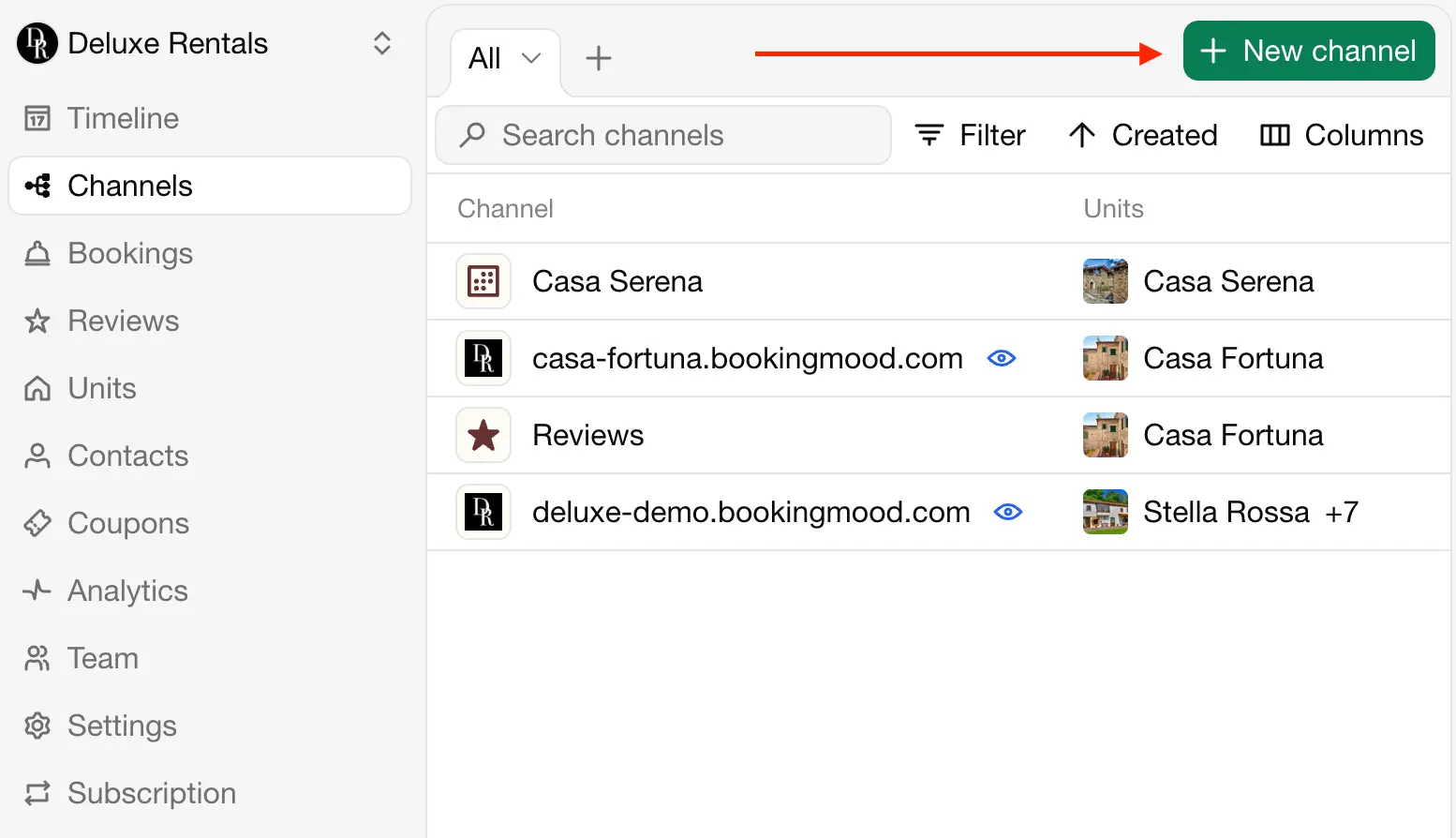
Select either the Calendar or Timeline widget depending on what you'd like to display
Add your unit(s) and then customise the widget's appearance
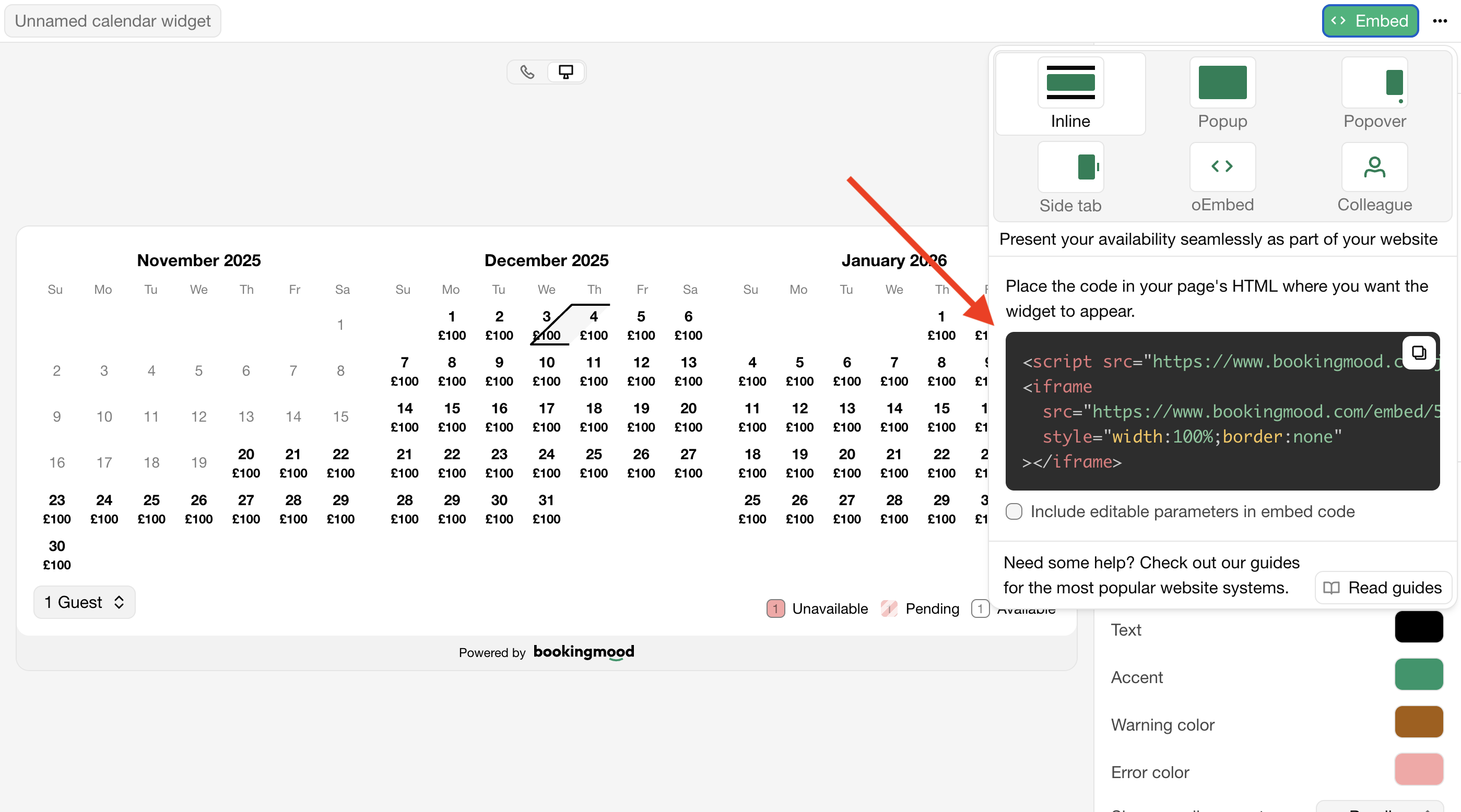
Click Embed in the top right-hand corner
Select the Inline option
Copy the code to your clipboard.
How to embed Bookingmood on your website
Once you've copied your embed code, you can follow the steps below to add it to your website.
Log into your Create account
Click Content on the top menu
Click Integrations & HTML >> Integration Library in the left-hand menu
Select the Bookingmood Widget and then Add Integration
Give your widget a name in the Description box
Paste your embed code into the Bookingmood Embed Code box
Click Add Integration
You can then place your Bookingmood calendar on one of your pages using a Custom Block.
Related Articles
Related Articles


More Questions?
If you have any further questions, please get in touch and we will be happy to help.
Get in Touch