

Help Centre
Support > Designing and Building Your Website > Designing Your Website
How To Use Sections
Sections is the latest feature coming to Create. Sections allow you to create reusable groups of content blocks that can be used across multiple pages and areas of your website.
When you make a Section, the content within it is locked and linked. You can use that section on multiple pages and areas of your website. If you edit the original Section, any instances of that section added to pages will also be linked.
Sections can also be used to save preset arrangements of blocks and content. Once added to a page, you can detach the section, and they are editable individually, like regular Content Blocks.
Sections can be useful in many instances. Some examples of different use cases can be found below:
Set up a call-to-action Section featuring a newsletter sign-up form, which you can add quickly and easily to various pages on your website. Once added, you can then easily update the Section to reflect different seasonal newsletter bonuses and incentives throughout the year.
If you have a particular format of blocks and content that you use often across your website pages, Sections can help make the process easier by allowing you to add a pre-saved structure of blocks with just a few clicks.
With the introduction of our Shop Content Builder tools (Early Access), you can use Sections to make a preset product long description structure, which you can then quickly add and detach so you can edit the placeholder content to reflect the product.
How To Make Sections
To locate and access the Sections feature, go to Content (top menu) > Sections (left-hand menu)
This takes you to the Sections overview, where you can add new sections as well as manage any already created.
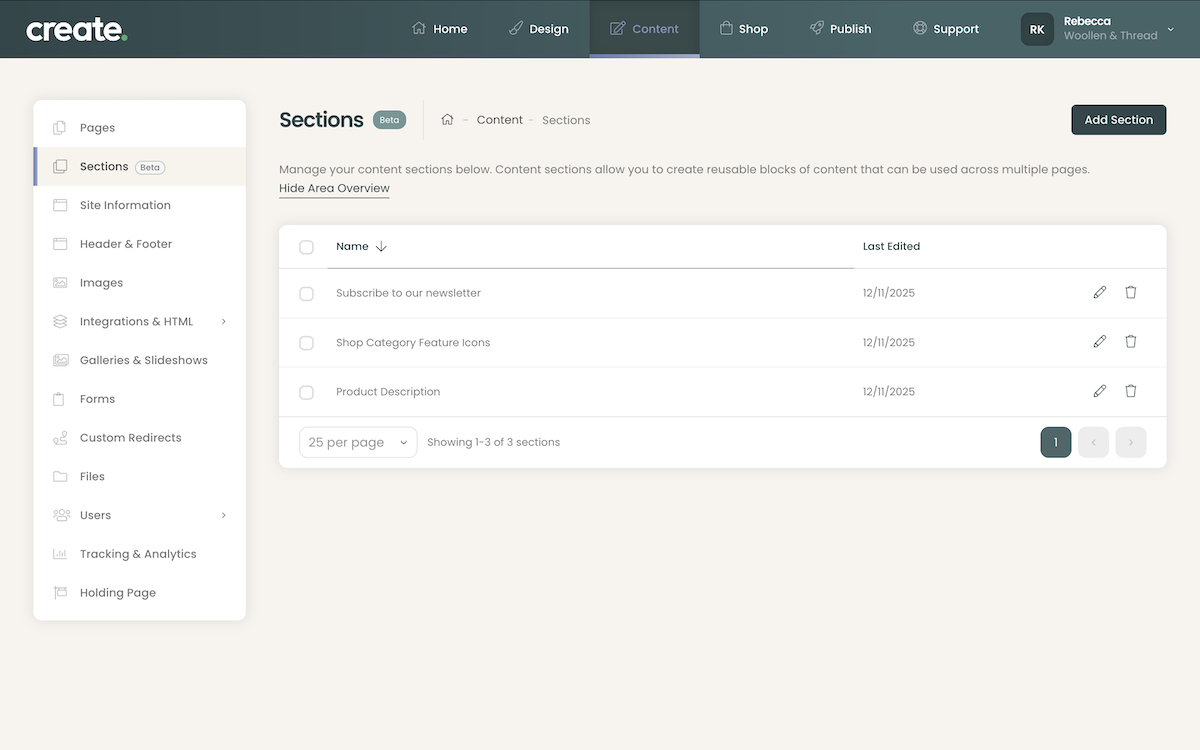
Follow the steps below to make a new Section
1. Click Add Section to begin
2. Use the Block Selector to build the Section you require
3. Once you have the Section as you need, click the Done button
4. You can give the Section a name; this is just for your reference
5. Click Add Section to finalise it. This will now appear in the Sections area of your account.
Adding Sections
Once made, Sections can be added to any area in Create which supports our Content Builder feature.
To add a Section, whilst editing a Content page, follow the steps below:
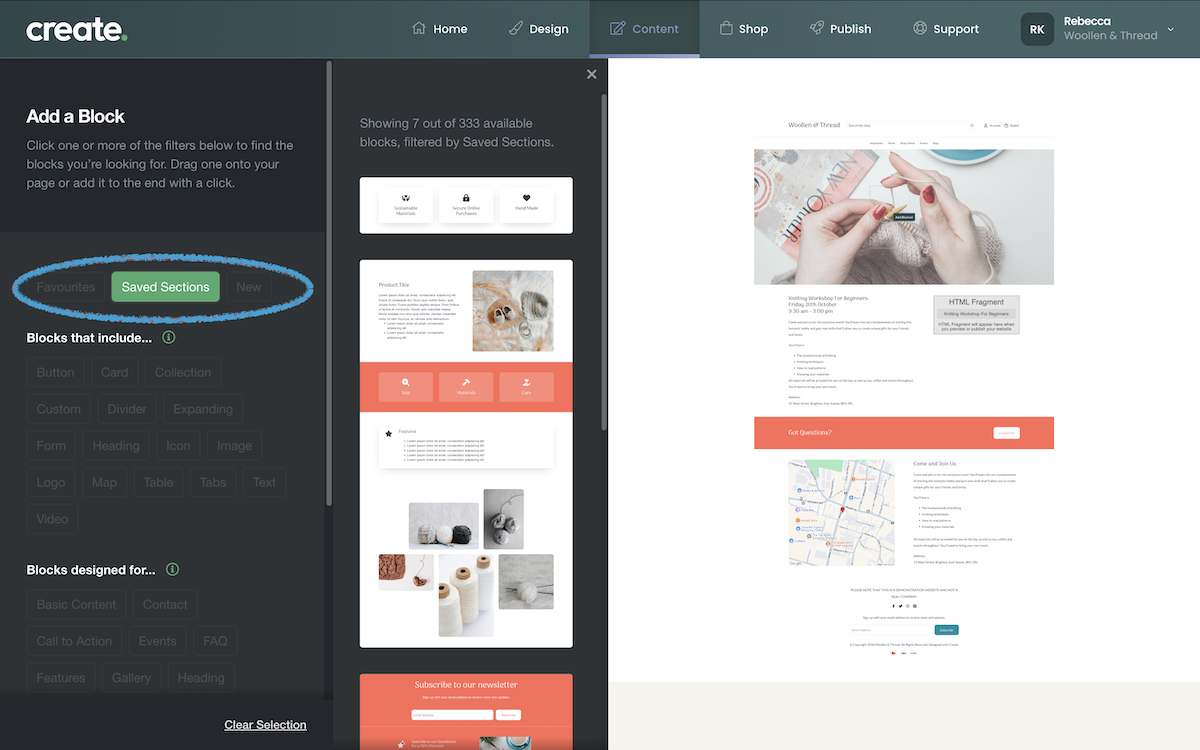
1. Access the Block Filter by clicking Add Block
2. A new filter, Saved Sections, will be visible. Click it, and any Sections you have made will be displayed to select from.
3. Click the required Section or drag it onto the page.
4. Your Section is now on the page.
Content within Sections is locked. Depending on what you need from the Section, you can either leave the content as it is. For example, you have set up a newsletter Section which you want to look the same wherever you add it.
Or if you are using Sections to quickly add regularly used content, you will want to use the Detach Section button. This will convert the Section into regular Content Blocks you can edit as normal, and will no longer be a linked Section.
For example, you have a series of Blocks you want to look the same format across different pages, but need the content to be unique within them.
Managing Sections
Once a section has been made, you will see it listed within the Sections area. If you ever need to edit a Section, click the Edit Section icon to the right. This will open the Section and the block selector, allowing you to make the edits required.
If you no longer want or need a Section, click the Delete Section icon.
Please note that when a Section is deleted, any instance of that Section used on your website which isn't detached will also be deleted.
Related Articles
Related Articles


More Questions?
If you have any further questions, please get in touch and we will be happy to help.
Get in Touch