

Help Centre
Support > Designing and Building Your Website > Integrations
How To Create A PDF Flipbook
Turn your PDFs into engaging flipbooks with our PDF Flipbook widget. Give visitors an immersive, book-like experience that turns standard documents into something they’ll actually want to explore.
Uploading your PDF file to your Create account
First of all, you'll need to upload your PDF file in your Create account. You can do that by following the steps below:
Log in to your Create account
Select Content on the Top Menu
Click Files in the left-hand menu
Click the Add File button in the top right-hand corner.
You'll then be able to browse your computer for the file that you'd like to upload.
Creating the PDF Flipbook widget
Once copied, you can follow the below steps to create your PDF Flipbook widget:
Select Content on the Top Menu
Click Integrations & HTML > Integration Library from the left-hand menu
Select the PDF Flipbook Integration in the Media & Content category
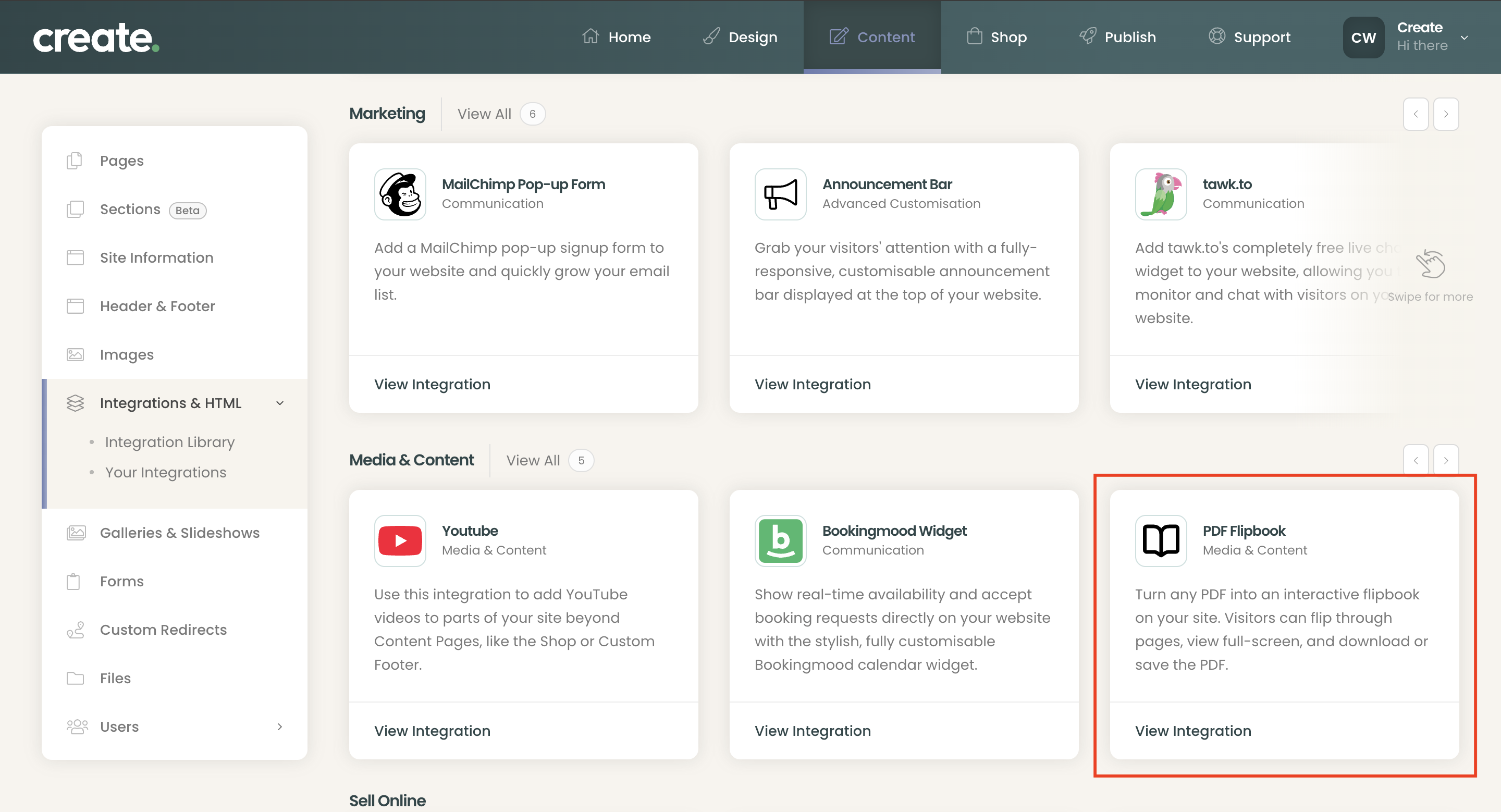
A panel will open on the right-hand side. You can give your PDF Flipbook a name in the Description box, then you can select your uploaded file from the PDF File field, or paste in an external URL.
Click Save Changes to save your Audio Player Integration.
Adding the PDF Flipbook to a Page Using Custom Blocks
Click Content on the top menu
Click Edit This Page (the pencil icon) next to the page you would like to edit. Click the +Add Block button
From the Add Block filters, select the Custom filter in the Blocks that include... category
A range of different custom blocks will be displayed
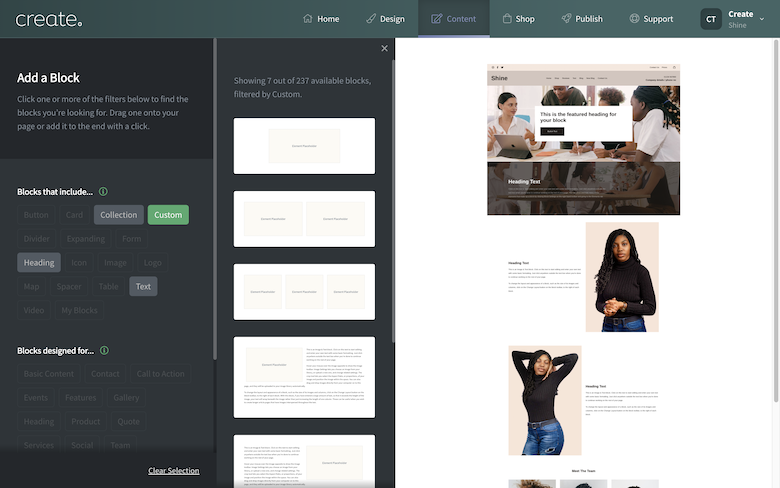
Drag and drop the Custom Element content block onto the desired place on the page
Once the Custom Element block has been added to the page, you can click the Add Element button and a range of content types will be listed. Select Integration from the list
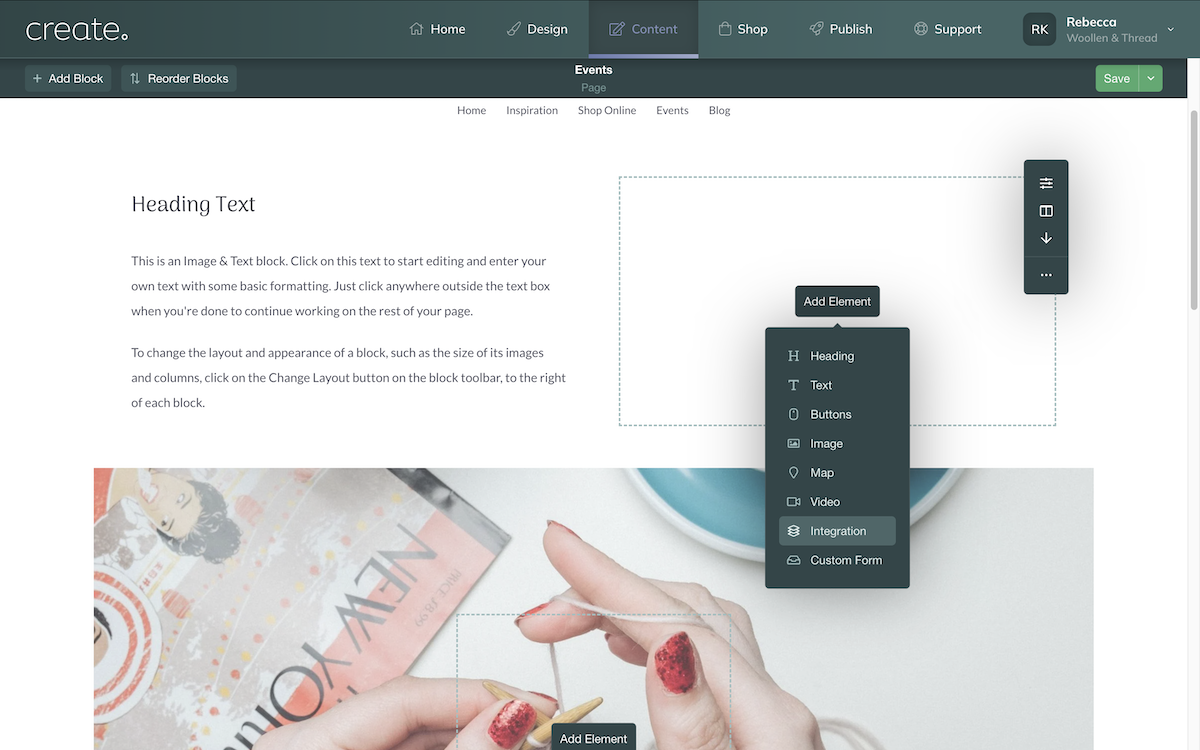
A list of any Integrations you have added will appear and you'll be able to select your newly create PDF Flipbook widget from the list. It should display with the Description that you added previously.
After selecting the Integration click Done and it will be added to the page as a placeholder.
You can now preview and/or publish your site to see your PDF Flipbook working on your site.
Related Articles


More Questions?
If you have any further questions, please get in touch and we will be happy to help.
Get in Touch