

Help Centre
Support > Ecommerce > Categories and Products
How Do I Set Up My Shop Products?
Your Shop products are the foundation of your online business and are the most important part of your Shop. You can present your products in a fantastic light, attract potential customers and build up a successful online business!
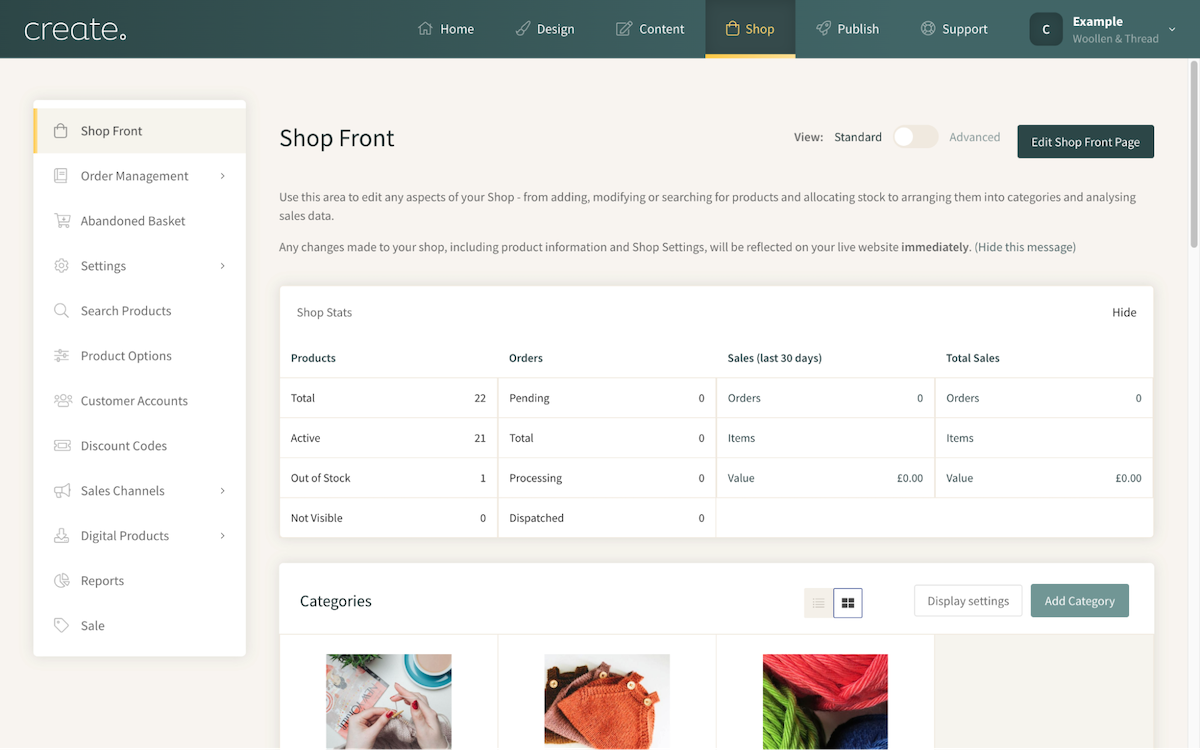
If you ever need to make changes to a product, such as amending the price or description, follow the steps below:
Go to your Shop area by clicking Shop on the Top Menu
Locate the product you wish to edit, you can use Search Products to help
Click the Edit Product icon below the product
The Edit Product screen will display, allowing you to make your changes
Click Save Changes
Adding A New Product
When you are ready to add a product to your shop, you can add it in one of two ways. You can either add the product directly to the Shop. Or you can add a category first and then add the product to the category.
1. Select Shop from the top menu and then scroll down to the Products in this category section at the bottom. This will add the product directly to the Shop.
2. Click the Add Product button
The following options will then appear:
Categories - This indicates which Shop category your product belongs to. This will appear as SHOP > SHOP CATEGORY
SKU – This is your Stock-Keeping Unit and is a unique number used to identify each different product available in your Shop
Title – The title of your product goes here
Short Description – This description will appear on your Category page and should be a small snippet of information about your product
Long Description – This is your main product description, which will appear on your Product Page. This is the location to add all the specific details about your product.
Price – The product price
Trade Price – This is what the product cost for you to buy/make. This is for your records only and the customer cannot see this
Weight – The weight of the product. This option can be used if you are setting up your postage costs by weight, or if you'd just like to keep a record of the product's weight
Visible On Site? - If your product is not ready to go onto your live Shop just yet you can always hide it or publish it to your site straight away
5. Select Save Product
Your product will then appear in your chosen Shop Category
How to add stock values to your products
If you would like to add a stock record to your product, please follow these instructions. This can be done whilst initially adding a product, or later on.
Locate the product you wish to add a stock value to
Select Edit Product next to your Shop product
Click the Stock Settings tab
Insert your stock amount in the Quantity in Stock field
Choose whether you would like this item to still be ordered when out of stock. If you would, select Yes from the drop-down list in the Allow Backordering? field
Write your out-of-stock message in the O.O.S. Message text box. This is the message that your customer will see when they attempt to order a product that is out of stock
Click Save Changes
Editing Existing Products
If you ever need to make changes to a product, such as amending the price or description, follow the steps below:
Go to your Shop area by clicking Shop on the Top Menu
Locate the product you wish to edit, you can use Search Products to help
Click the Edit Product icon below the product
The Edit Product screen will display, allowing you to make your changes
Click Save Changes
Deleting Products
If you no longer require a product in your Shop, you can remove it by following the steps below:
Go to your Shop area by clicking Shop on the Top Menu
Click on the Shop category your product is in (or use Search Products)
Click the Delete Product bin icon below your product
A message will then appear asking you if you are sure you wish to delete this product
Select Yes-Delete. Please note that the decision to delete a product from your Shop cannot be reversed, so be sure that you want to delete it before confirming.
The product will be removed from your shop
Related Articles
Related Articles


More Questions?
If you have any further questions, please get in touch and we will be happy to help.
Get in Touch